Verified helpers and services
Review helpers' introductions, videos, games, schedules and package options.

This is the official buffup information page.
Explore verified helpers, discuss work in your language, secure the contract payment, and confirm completion through the official buffup sign-up path.
 Lineage ClassicHelpers and services →
 AION 2Helpers and services →
 MapleStoryHelpers and services →
Review helpers' introductions, videos, games, schedules and package options.
Keep contract-specific conversations and translation records so requests and progress stay clear.
Funds are held separately until the work is completed and the buyer confirms it. Disputes pause payout.
Buyers, helpers and agencies see only the features available to their approved roles.
Loading guides…
Tap a topic to view the answer. The current contract screen takes precedence for actual status and terms.
Friend code: an approved buyer who refers a new buyer and the new buyer each receive 10 USDT.
Marketing partner code: only the new buyer receives 10 USDT. The partner receives no 10 USDT referral bonus and keeps their existing contract commission.
For either code, the approved new buyer's first normal contract of at least 100 USDT must be completed and settled. A friend referrer must also be an approved buyer. Only one code applies at sign-up. Cancelled, refunded, disputed, or duplicate-account cases do not qualify or require review.
The bonus appears in the in-app balance and transaction history, but currently cannot fund a contract or be withdrawn. Earlier sign-ups and contracts are not retroactively credited.
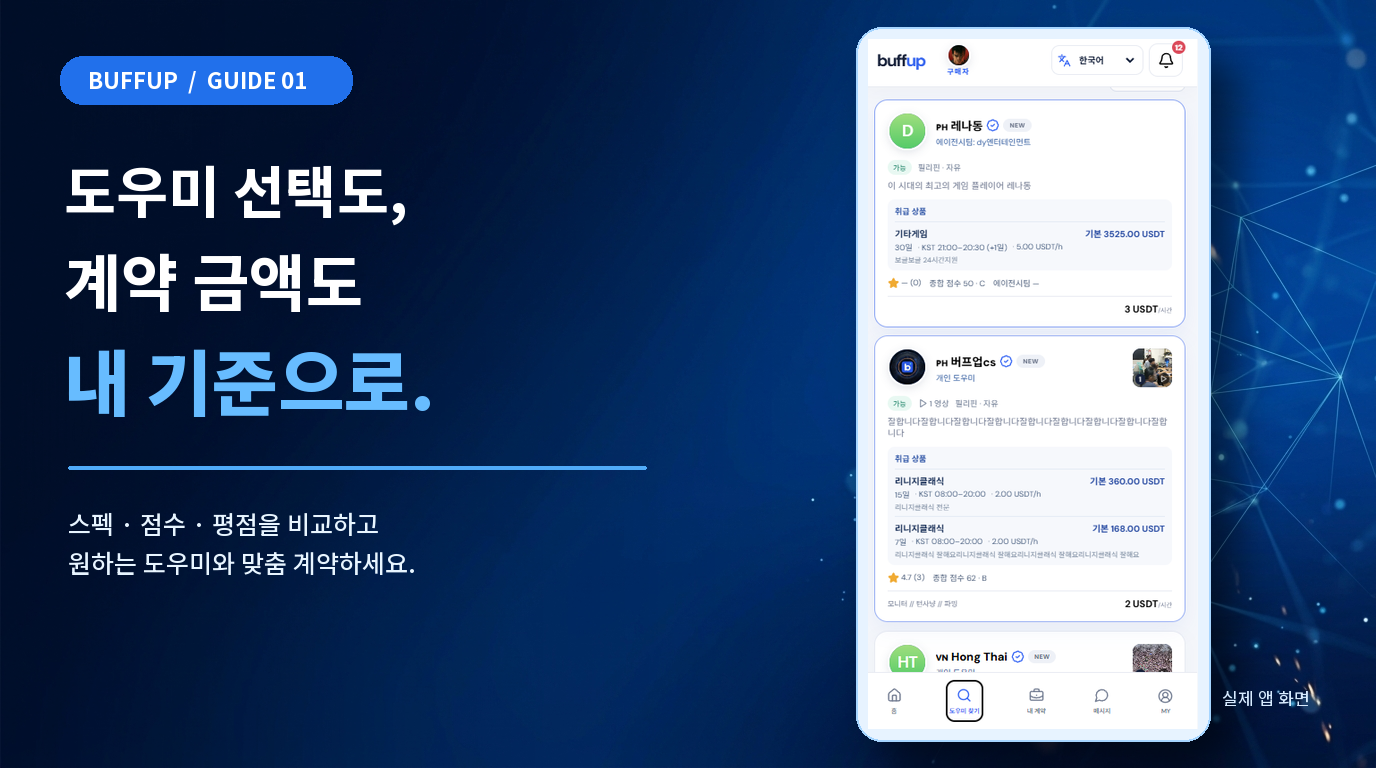
On Buffup, find a helper yourself based on your preferred game and work requirements. Compare profile information, ratings, overall scores, and prices, then choose the person who’s right for you.
Compare each helper’s fees and scope of work to arrange a custom contract, then check work reports and progress updates in the contract chat.
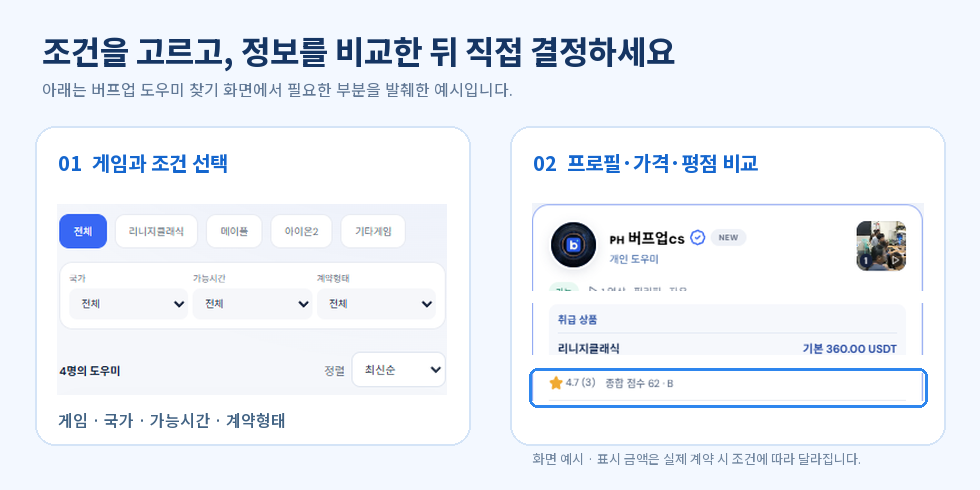
Choose a game and narrow down candidates by country, available hours, and standard duration. Compare activity information, work packages, prices, ratings, and overall scores on helper cards. After checking the terms and talking with them, the purchasing member makes the final choice themselves.
Compare the terms,
at an amount that works for you.
Each helper offers different services and proposed prices. Set the work scope and duration you want, compare the terms, and arrange a custom contract with a helper who suits you.
The actual amount varies depending on the game, work details, duration, and helper’s terms. Before contracting, check the total amount and work scope together.
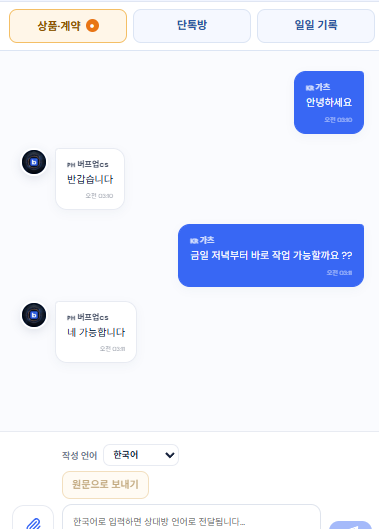
You don’t have to wait for the results after signing a contract. You can check the work at any time in the contract room, review progress reports and daily logs, and inspect anything that needs attention.
When needed, you can also watch the work in progress live on Telegram. Recording with in-game features or OBS is also possible.
When you contract with a helper affiliated with an agency, the agency guarantees the work and handles responsibility and the compensation process if an incident occurs. The work details and progress logs in the contract room serve as evidence for verifying this process.
Before signing, check whether the helper is affiliated with an agency, the scope of work, and the compensation standards in case of an incident. Actual compensation is handled according to the contract terms.
You can work with an agency team that communicates in Korean. Conversations without a saved translation appear in their original language, so confirm important work terms in the contract room.
We’ll walk you through the sign-up process for your role—buyer, helper, agency, and more—clearly and step by step, with screenshots of the actual screens.
Open Buffup using your Telegram account, check the required information, and complete your registration. You do not need to create a separate password.
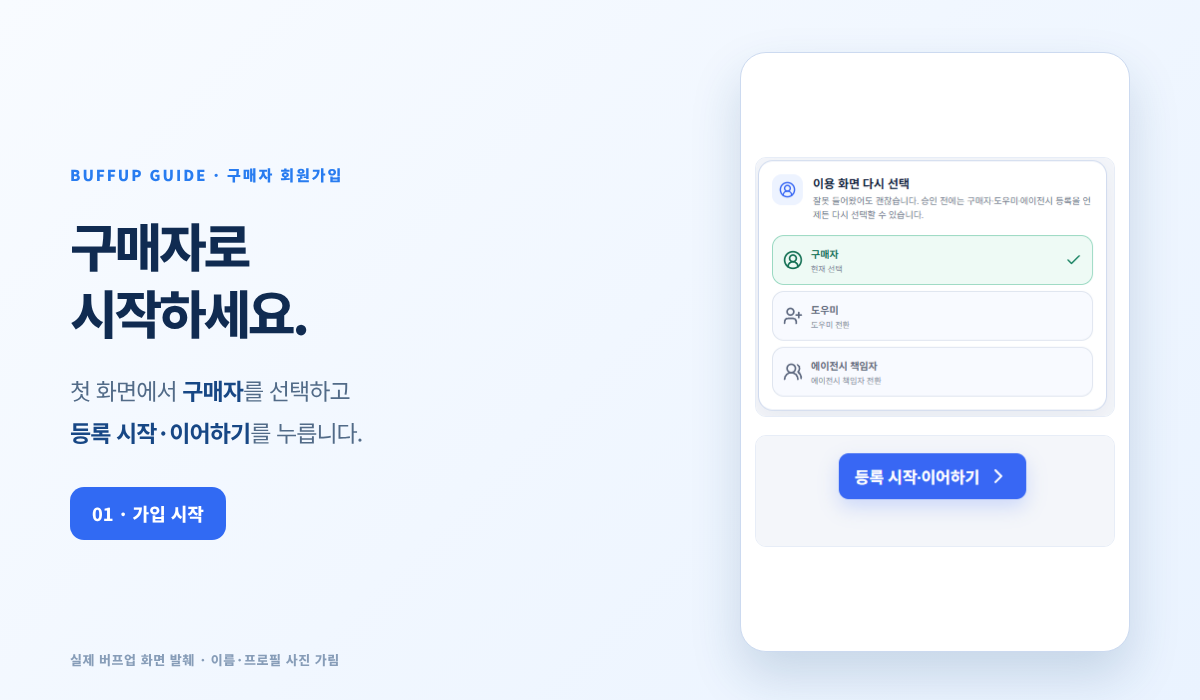
Find @buffup_app_bot in Telegram and open the Buffup Mini App. On the initial registration screen, select Buyer, then tap Start/Continue Registration.
In 1. Register your account information, set your role to buyer and check your language, name, and country. When finished, tap Save account information.
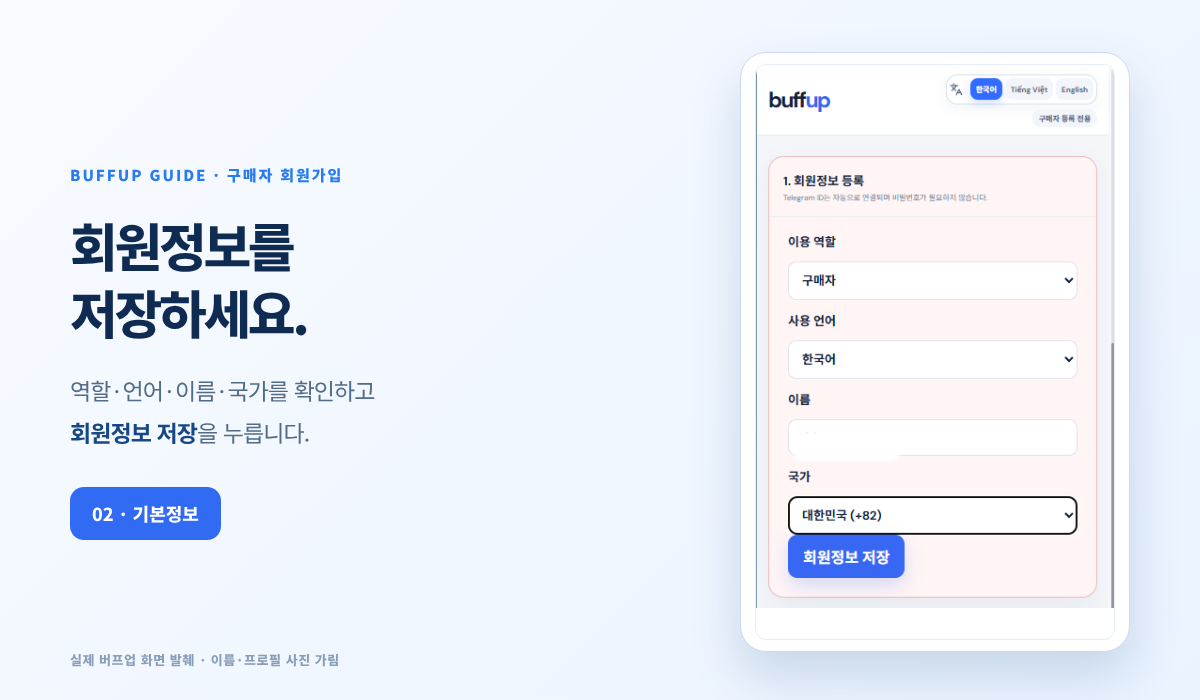
Your Telegram ID will be linked automatically. Buyer registration does not require entering separate contact information or completing identity verification.
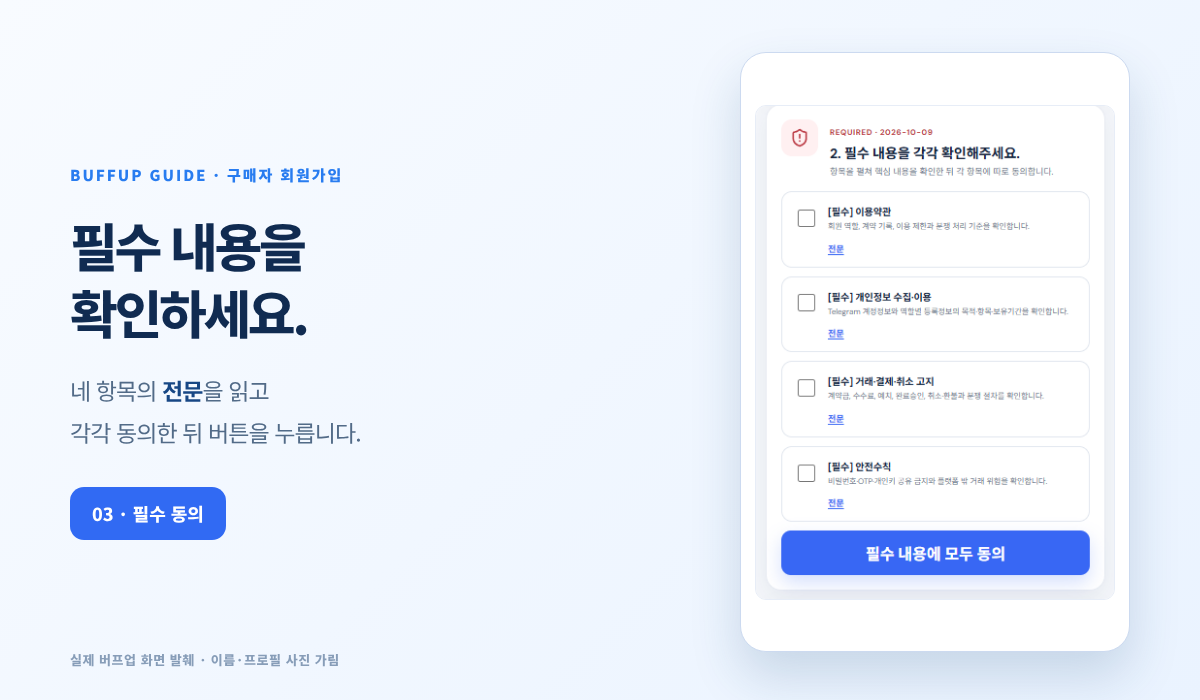
In 2. Please review each required item, open and read the Full text for every item. Check each item that you understand and agree to, then tap Agree to all required items.
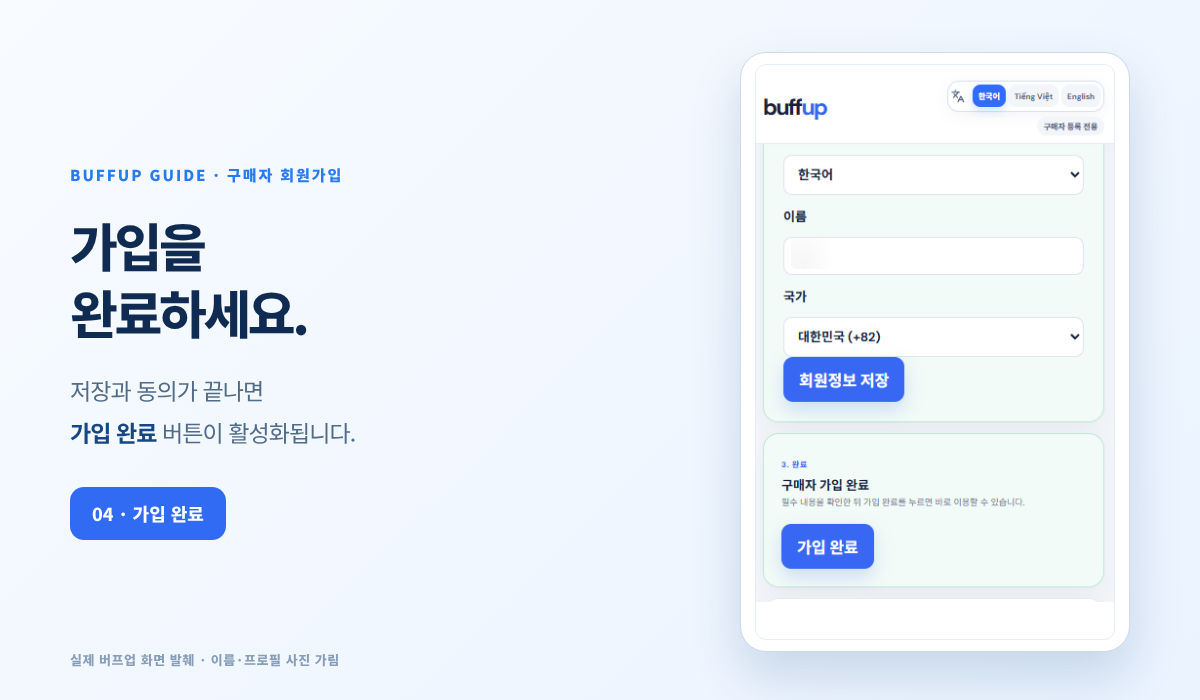
After saving your account information and completing the required consents, the Complete Registration button becomes available. Buyers can use Buffup right after tapping it. Choose a game on Home or go to Find a Helper.
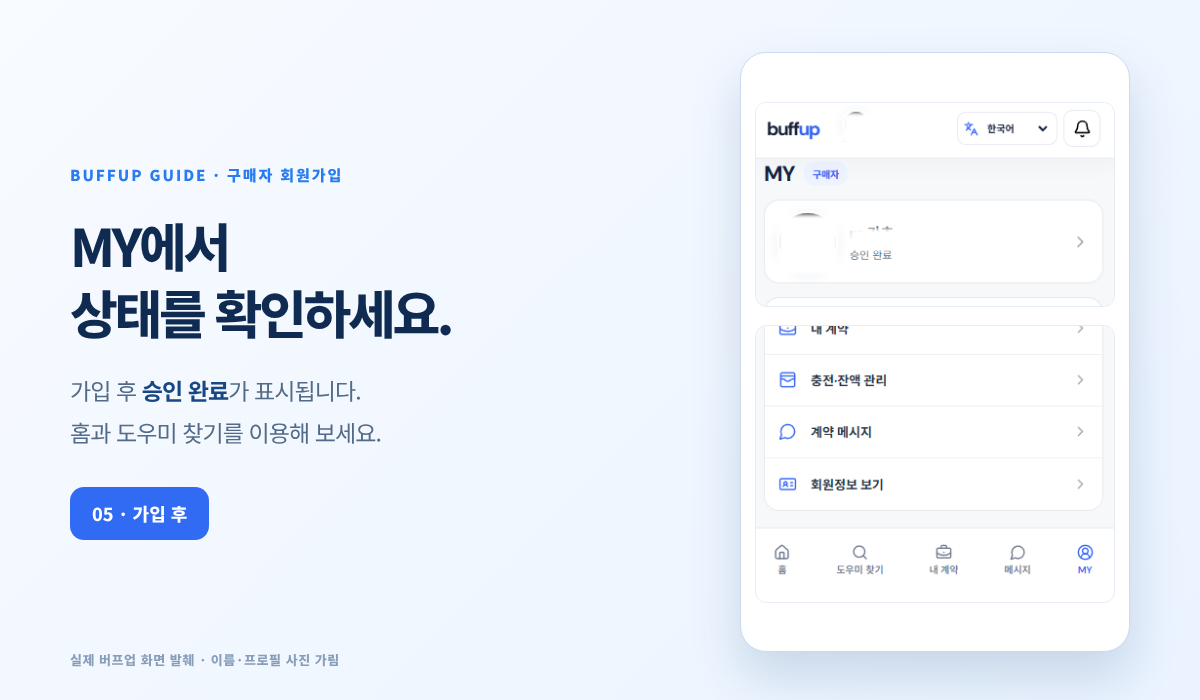
After signing up, your account information in MY shows Approved. You can use the Home, Find a Helper, My Contracts, Messages, and MY menus at the bottom of the screen.
No. The BuffUp Mini App is linked to your Telegram account. Never share your password or verification code with anyone.
The current buyer registration process does not require identity verification. You can start using the service as soon as you complete the required information and tap Complete Registration. The registration process for assistants and agencies is different.
Before submitting your registration, choose Buyer under Select your experience again. To take on a different role after registering, use Apply for Additional Role in MY.
Choose your game and work requirements, compare profiles, ratings, overall scores, and prices, then select the assistant that suits you.
Follow these steps to sign up as a helper and receive approval. Write an introduction, review the required information, complete identity verification, and then request approval from an administrator.
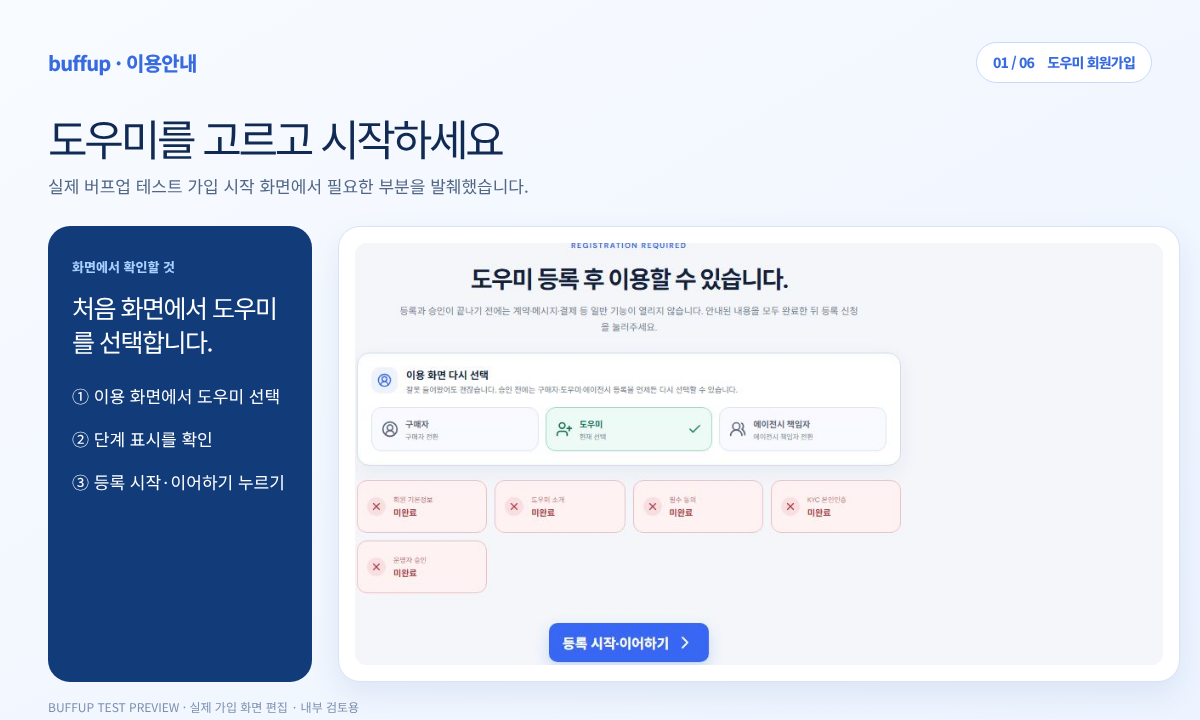
Open @buffup_app_bot in Telegram and enter the Mini App. Select Helper, then tap Start registration · Continue.
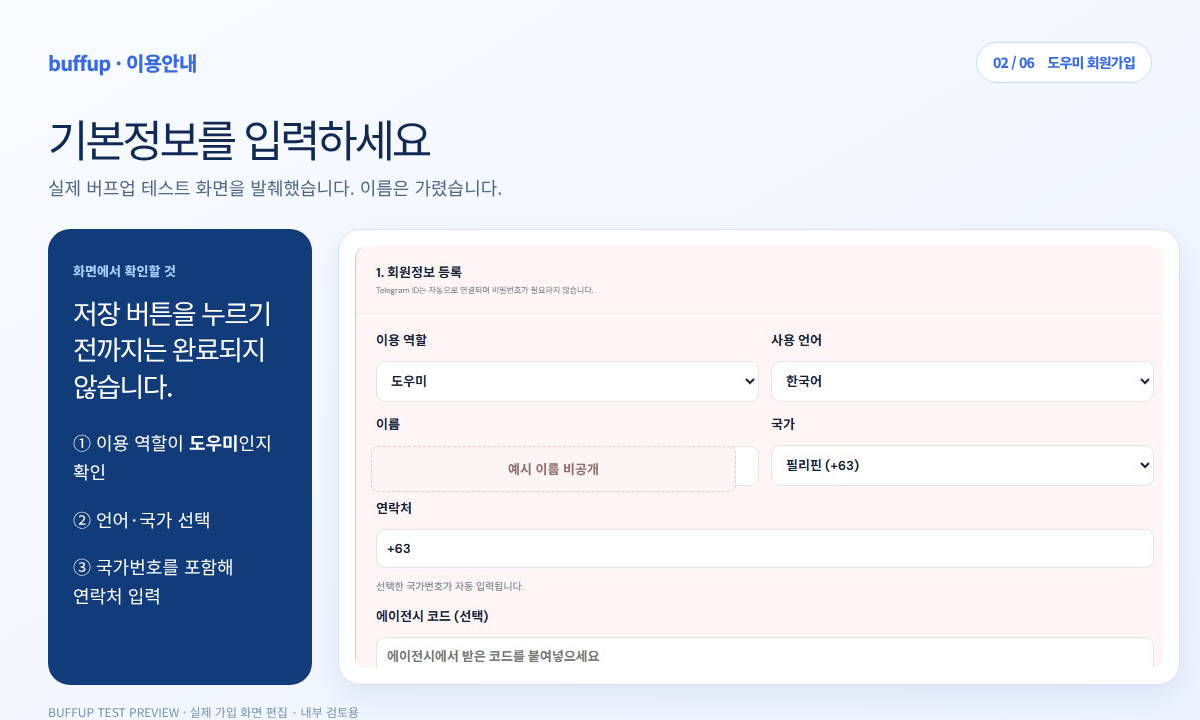
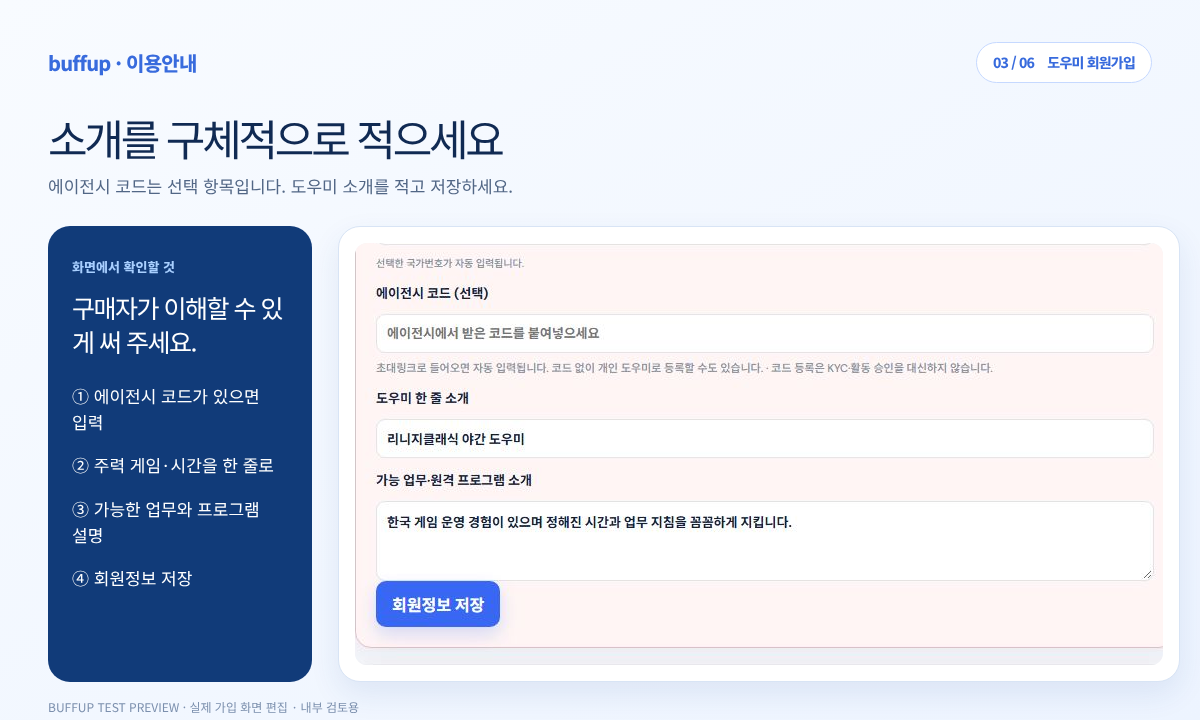
Check your role, language, name, country, and contact information. Enter an agency code only if you have one. In One-line introduction and Introduction to available work and remote programs, describe the games, tasks, and hours you can actually offer.
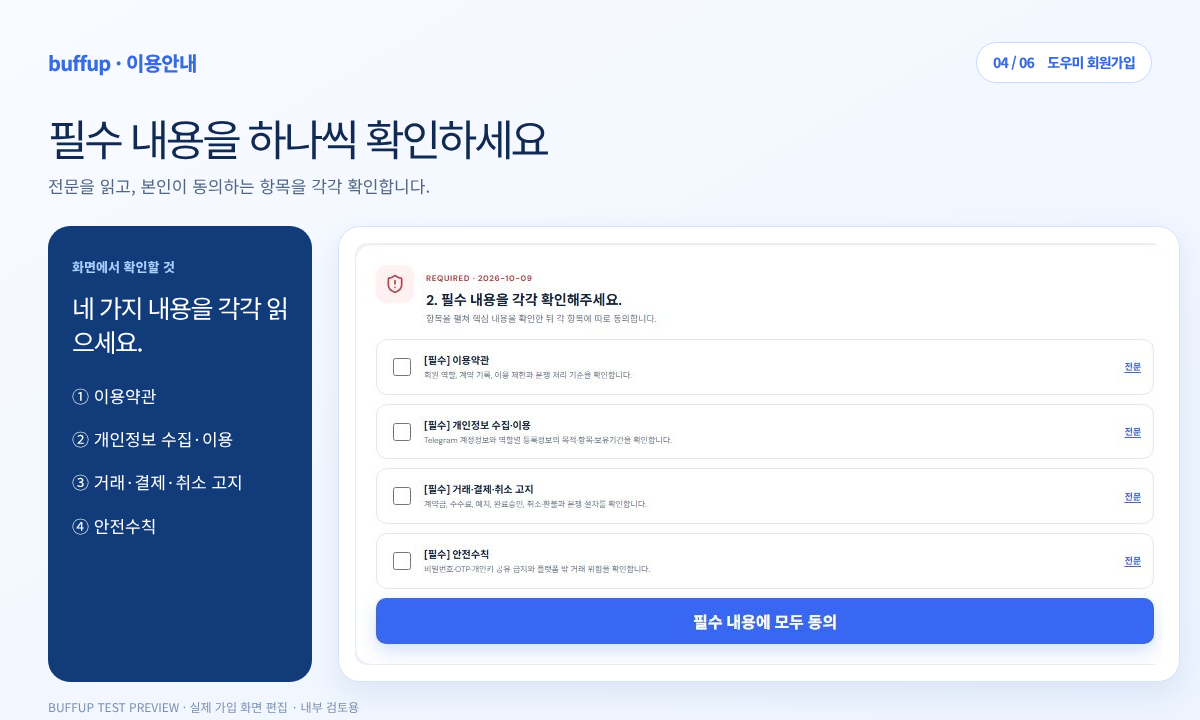
Open and read the Full text for each required item, then check each one you agree to. Finally, tap Agree to all required items.
Read the Helper Verification: Real-Name Disclosure notice. It explains that, after approval, your verified name will appear in buyer-facing listings and your profile. Then review the Didit Privacy Consent and tap Start KYC to complete identity verification.
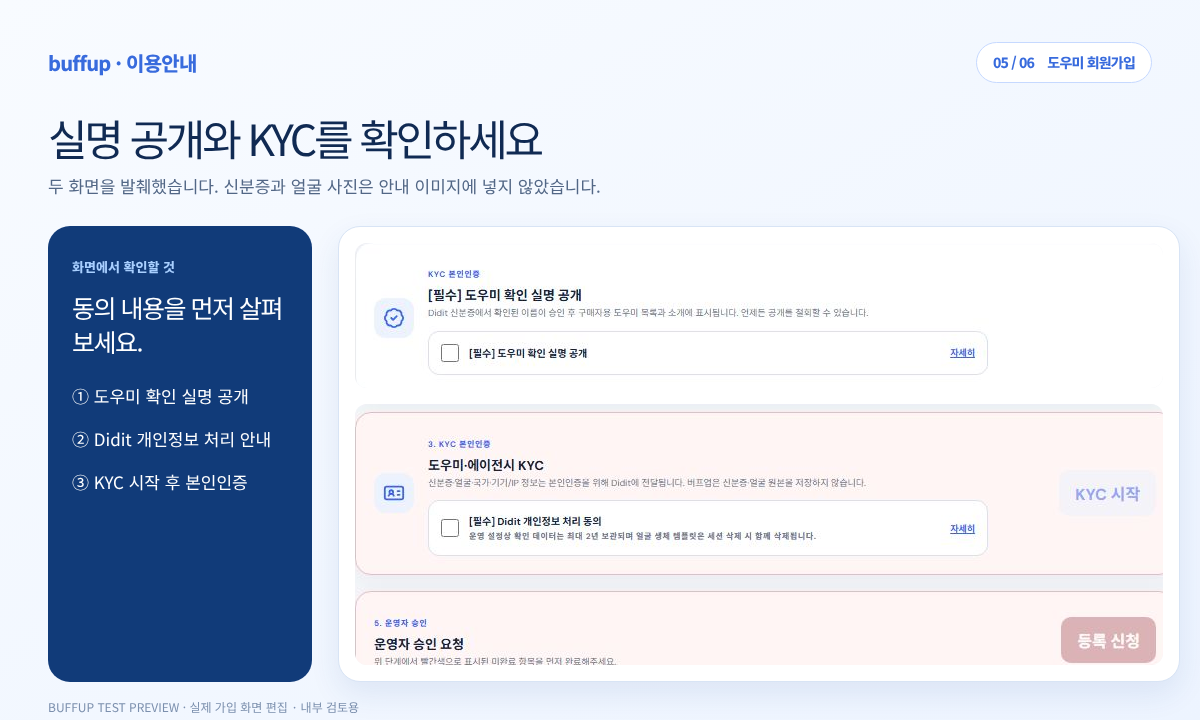
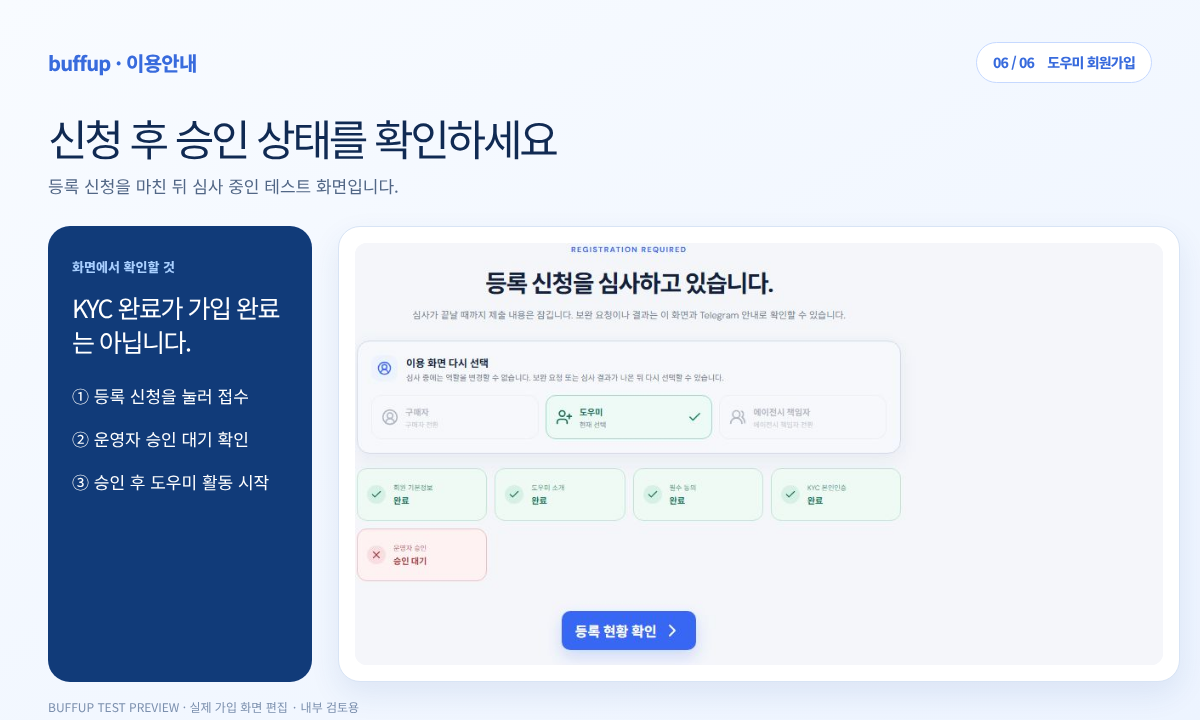
When all required steps are complete, tap Submit application. If Under review or Awaiting approval appears, your application has reached the operator. You cannot start helper work until approval.
Yes. The code is optional. A separate guide explains how to join an agency after signing up as an individual assistant.
Will I receive a contract offer as soon as I complete KYC?After KYC, you must click Submit Registration and receive operator approval before you can start working as an assistant.
I selected the wrong role.Before submitting your application, you can change it by selecting “Choose a screen again.” Role changes are restricted while your application is under review.
Providing specific details about the games and services you can offer helps buyers compare options. The next guide covers setting up your profile and registering your services.
Sign up as an agency owner, and follow the steps through approval. Save your team information, review the required details, complete identity verification, and apply for administrator approval.
Open @buffup_app_bot in Telegram and enter the Buffup Mini App. Select Agency owner, then tap Start registration · Continue.
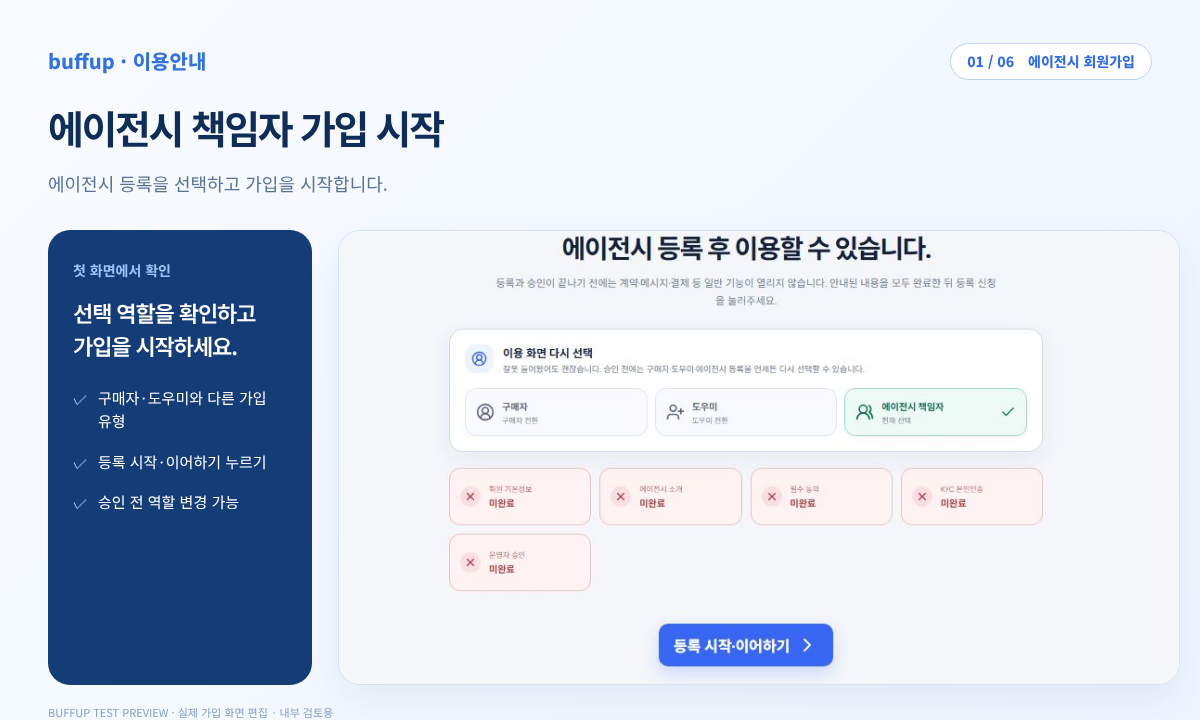
Enter role, language, name, country, and contact number in order. Confirm that the role is Agency owner and provide a reachable phone number with its country code.
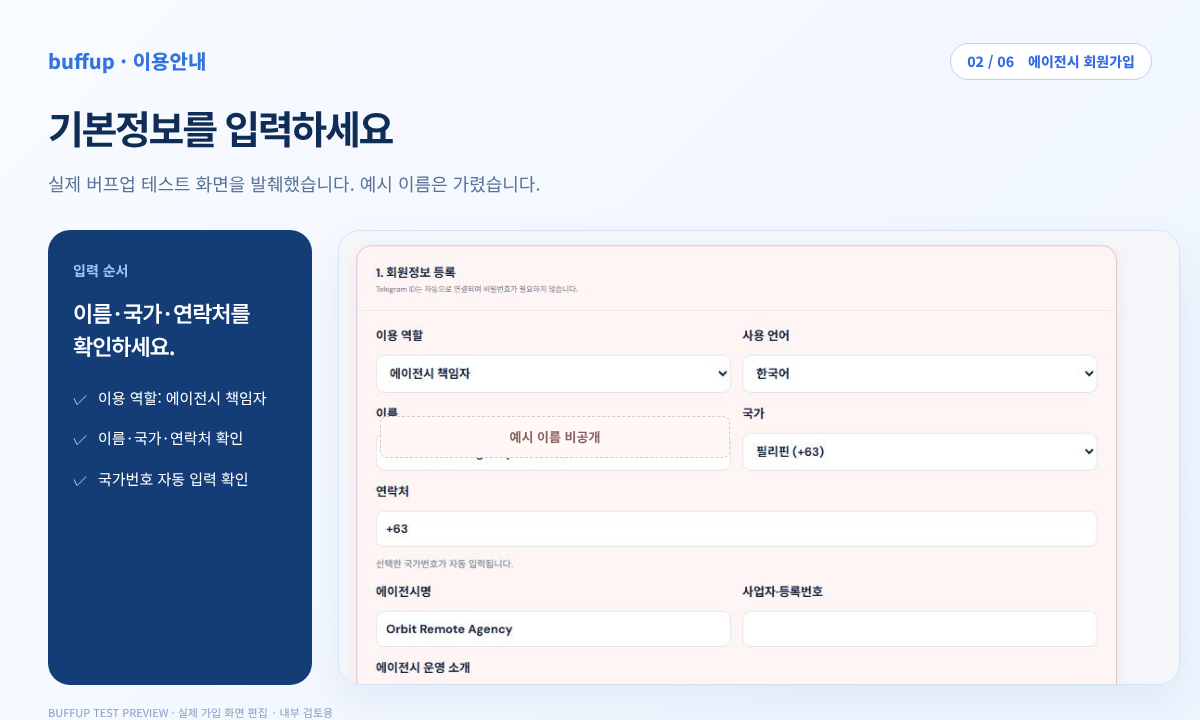
Check the agency name, business or registration number, and agency introduction. Describe the operating country, how you manage the team, and the games and services your helpers can actually provide. Then tap Save member information.
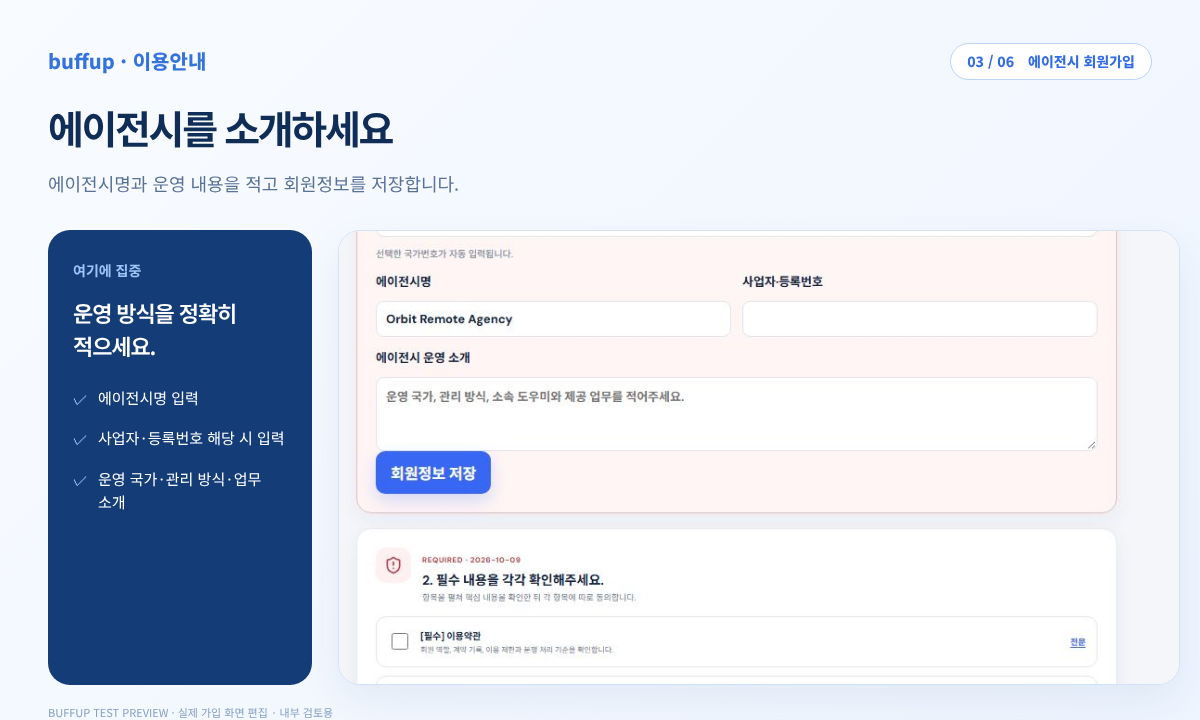
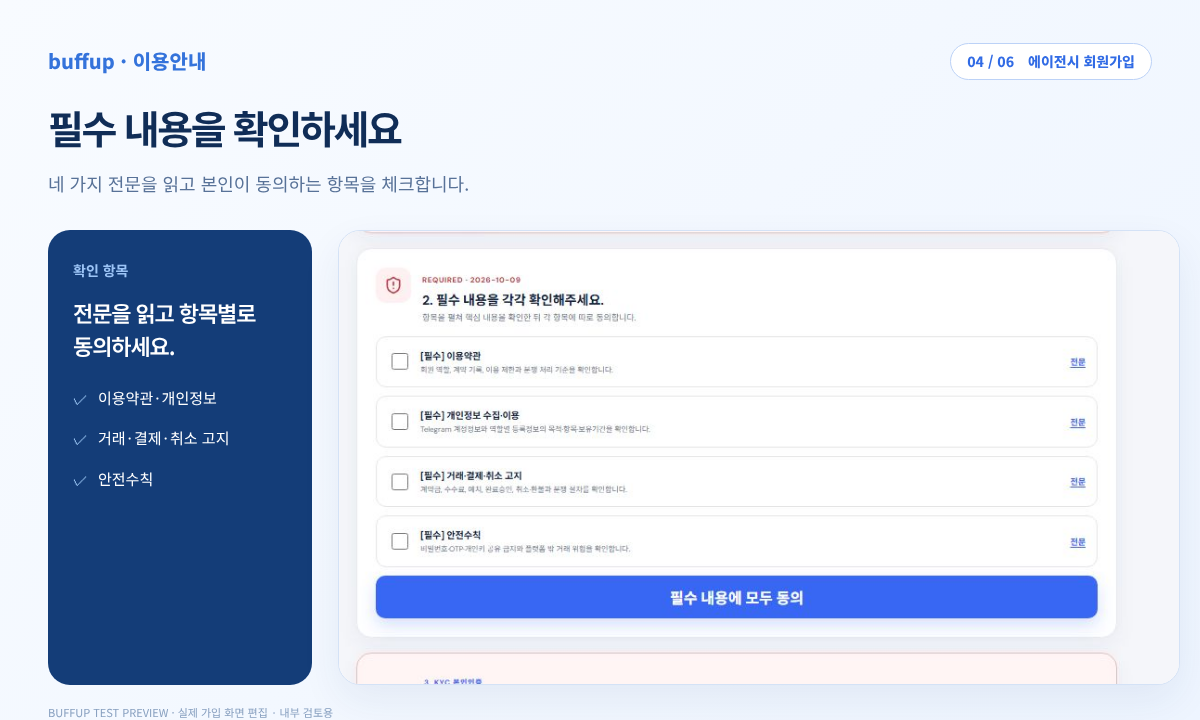
Open and read the full text of each required item, then check the items you agree to. Finally, tap Agree to all required terms.
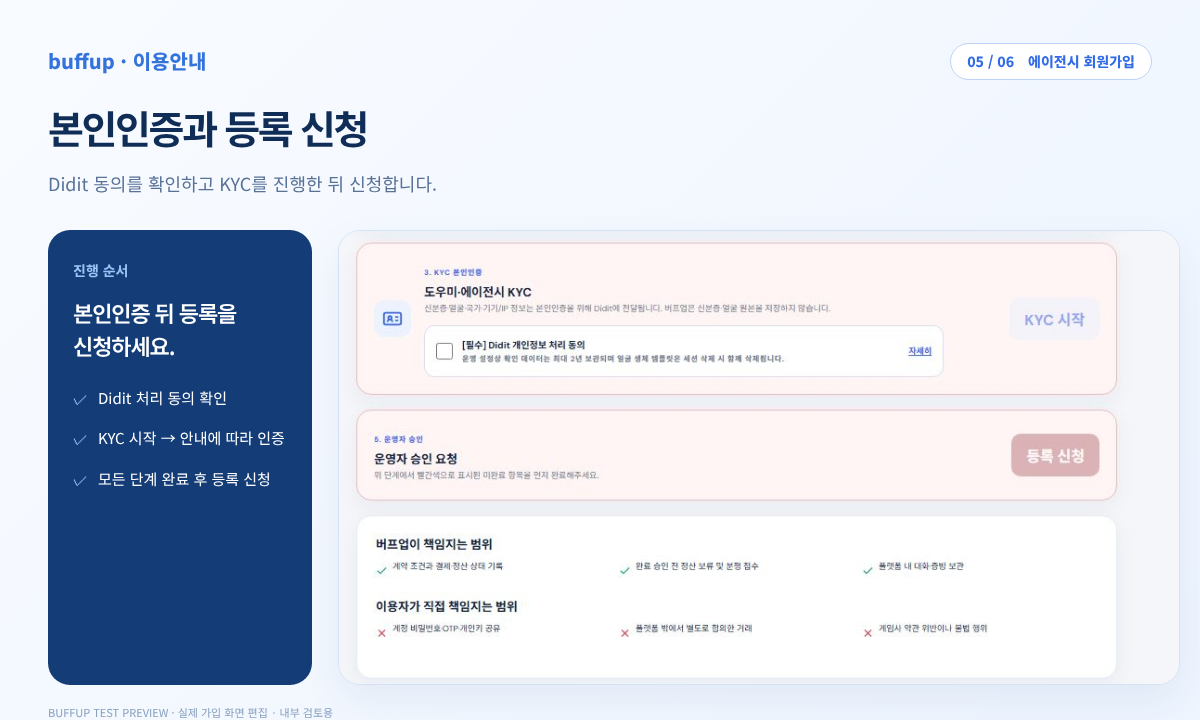
Read the details of Didit’s privacy-processing consent, then tap Start KYC. When verification is reflected and all previous steps are complete, tap Submit Registration.
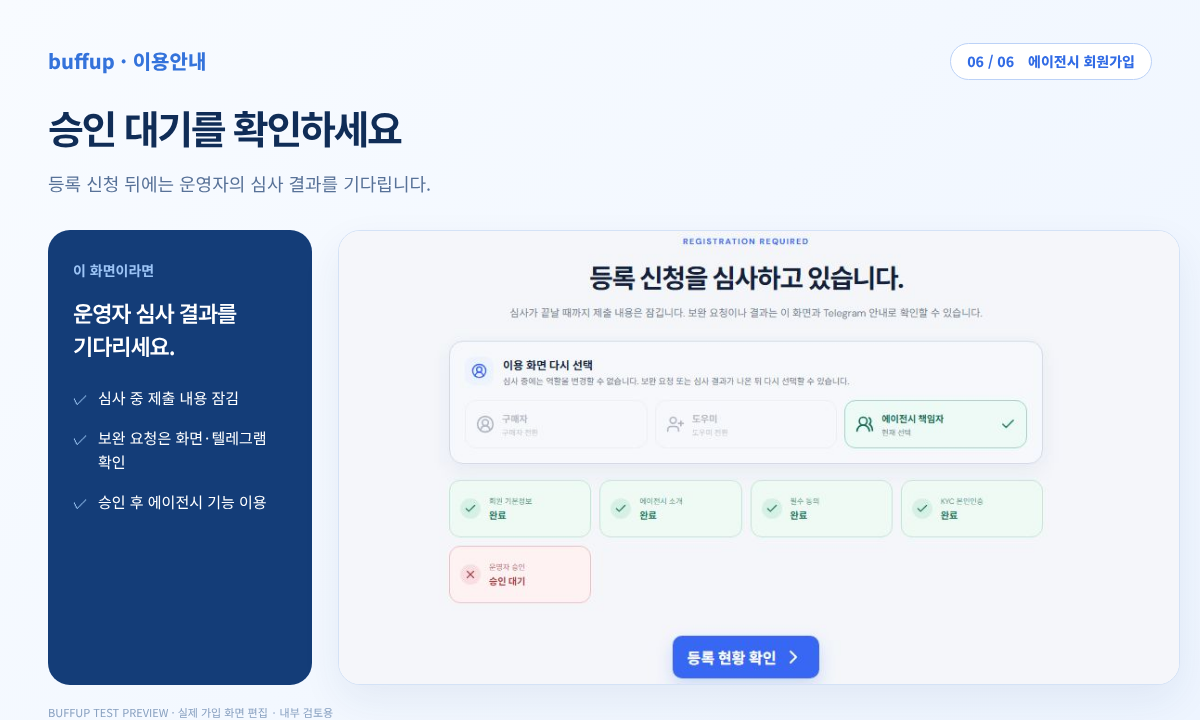
If Your registration application is under review appears, your basic information, introduction, consent, and KYC are complete and administrator approval is pending. Use Check registration status to view requests for more information and the result on screen or in Telegram.
This guide covers the process for the person responsible for registering an agency. The participation and permissions of general managers and affiliated managers are explained in a separate guide.
Can I use it as soon as I complete KYC?After KYC, you must submit a registration application and receive administrator approval before agency features become available.
Can I change my role while it’s under review?The app screen indicates that changing roles is restricted while an application is under review. Check the on-screen instructions after you receive a request for additional information or a decision.
The next guide explains how to connect and manage affiliated assistants, as well as the permissions of general managers and managers.
Follow these steps from manager nomination through approval. The person in charge nominates a candidate, and the candidate accepts directly. After personal verification and operator approval are complete, they join the assigned team.
The agency owner registers the team and manages its managers. A General Manager works under the owner, while a Manager belongs to an active general manager.
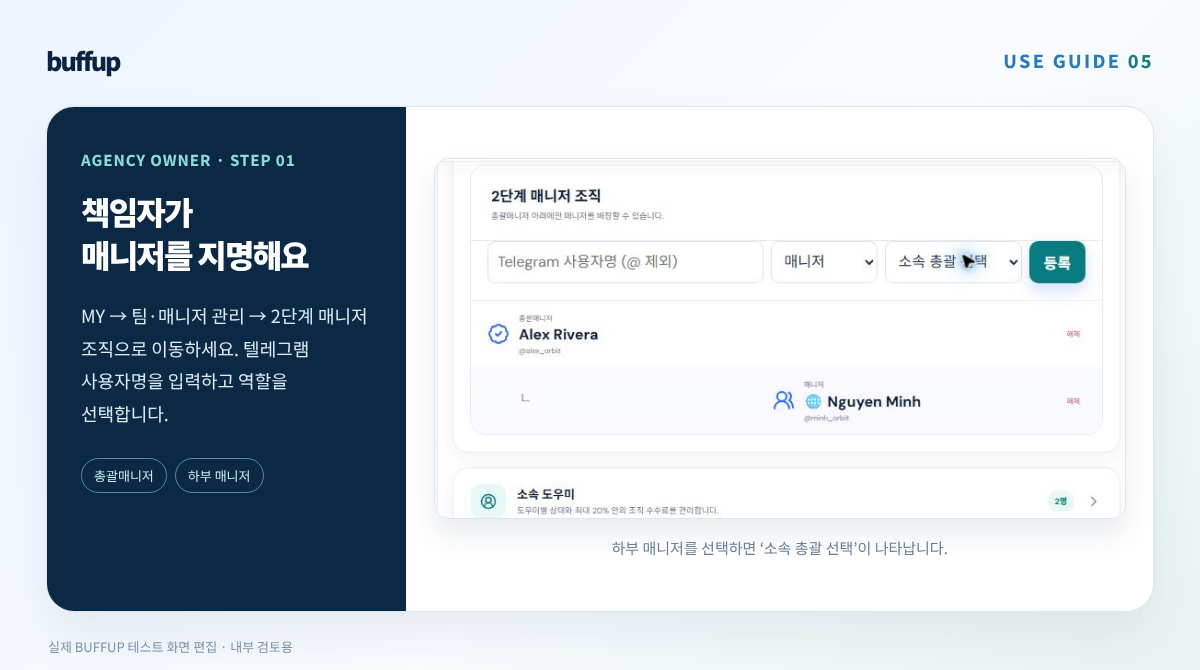
Open Buffup through @buffup_app_bot and go to MY → Team & Manager Management → Agency Team Management → 2nd-Level Manager Organization.
When the agency owner nominates you, the Buffup bot sends a notification. Tap Confirm nomination, or go to MY → Member Information & Verification Management → Agency Manager Nomination to check the agency name and role.
To participate, tap Accept nomination; otherwise, tap Decline. Only the candidate can decide. An approved buyer may also be nominated. Nomination alone neither removes buyer access nor grants agency permissions.
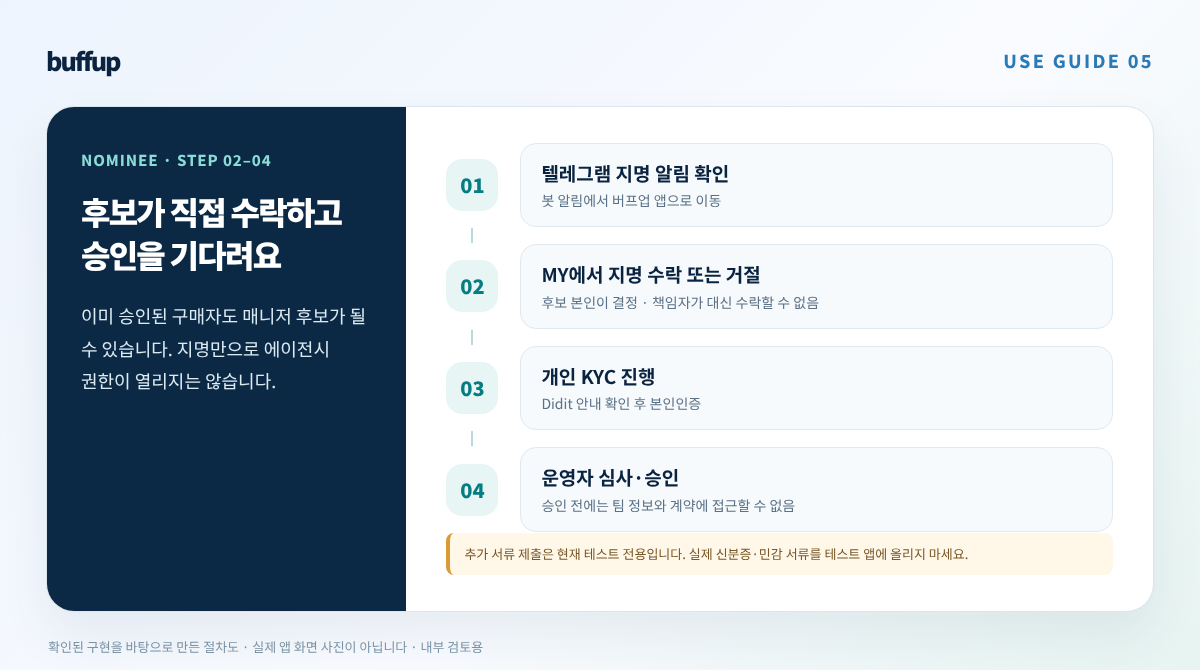
After accepting, review the Didit privacy notice and tap Start personal KYC. If verification is in progress, use Check KYC results to see its status. Accepting a nomination alone does not grant access to agency rooms, customer information, product management, or settlement permissions.
Manager review in the live serviceAfter final approval, all team contract rooms are visible on the agency page. General managers can view all team helpers and subordinate managers; managers can view their assigned helpers. Your own helper contract also appears in the team list, but handle its work in your personal helper screen.
Use the agency page to review team contracts. Handle your own helper work and payout in the personal helper screen. Only the agency owner can change commission settings.
The registration method currently confirmed searches by the Telegram username of members who have completed sign-up and received operator approval. Please complete sign-up and get approved first.
Can buyers also be manager candidates?Yes. The system is designed to allow approved buyers to proceed with nomination and personal KYC. Accepting a nomination does not immediately grant agency permissions.
Can I register a manager without a general manager?No. Managers are assigned under an active general manager. A general manager candidate must be approved first.
I received a nomination notification, but I can’t see the team information.Your application may be pending review. Your assigned scope will become available once the candidate accepts, completes personal KYC, and passes any required reviews and final approval.
Once this process is complete, you can work with the team you’re responsible for. Check your approval status and access to team contract rooms on the agency page.
You can join a helper agency before or after sign-up. Get an invitation link or code from the agency owner, then use the field that matches your current registration status.
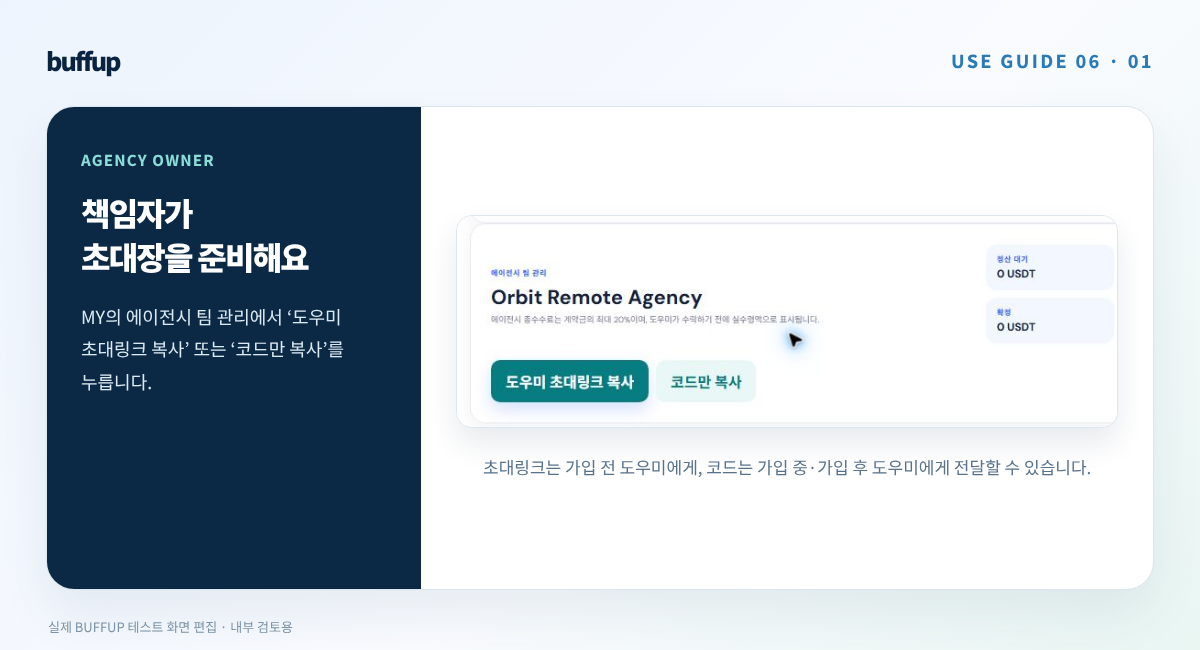
In the Buffup app opened through @buffup_app_bot, the agency owner goes to MY → Team & Manager Management → Agency Team Management. They then tap Copy helper invitation link or Copy code only and send it to the helper.
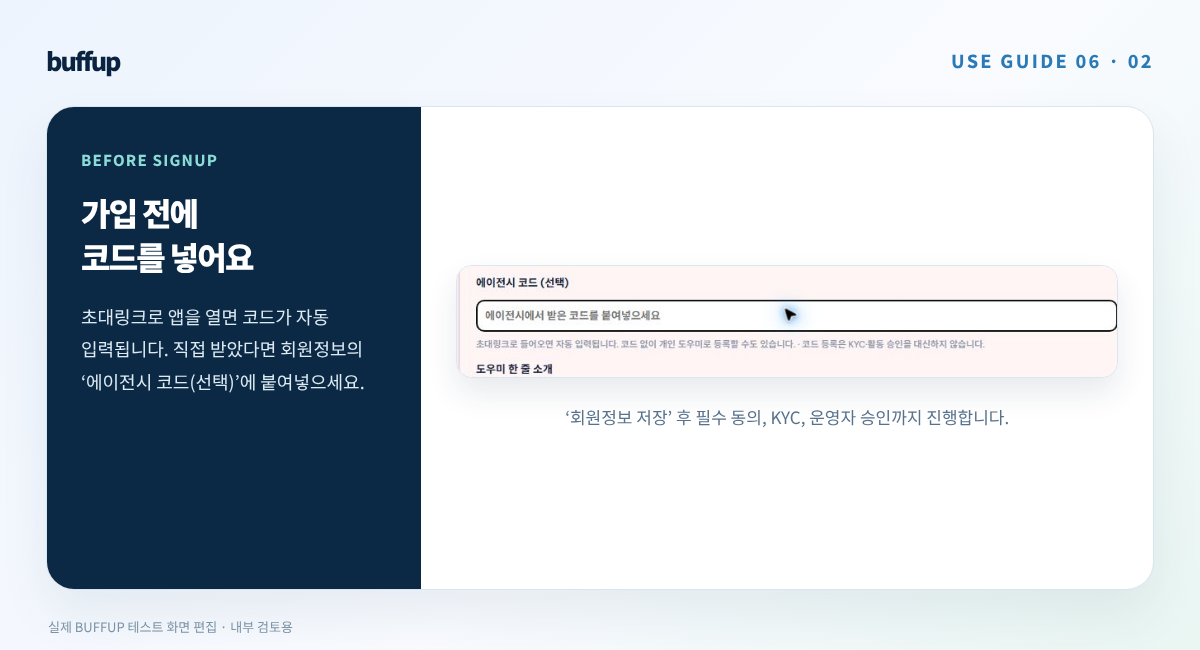
If you opened Buffup using an invitation link, check whether the Agency code (optional) field on the helper registration screen was filled automatically. If you received only a code or the field is empty, paste the code yourself.
Check your name, country, contact information, and helper introduction, then tap Save member information. Continue through Review required information → KYC identity verification → Submit registration → Administrator approval. An invitation code does not replace these approval steps.
You can register as an individual helper without a code. For the full registration process, see Helper Membership Registration GuideGo to MY → Register/Edit Helper Profile → Manage Member Information & Verification → Register Agency Affiliation. Paste the code from the agency owner and tap Sign up. This route is for helpers whose registration and personal KYC are approved.
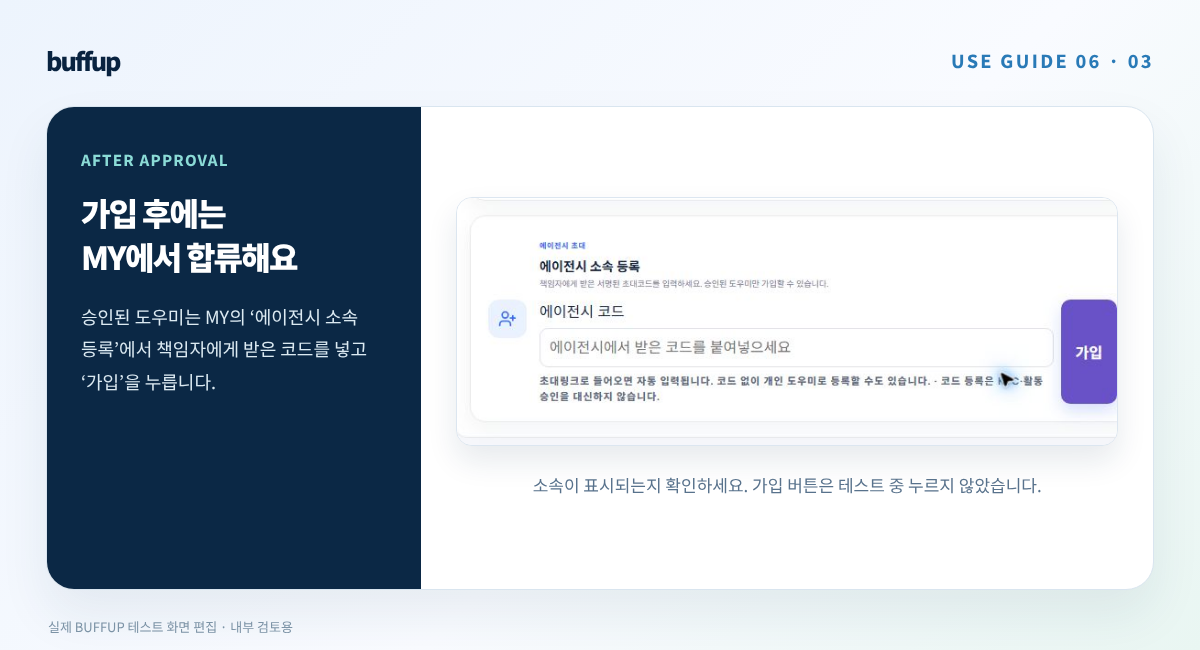
After joining, check the agency name and affiliated helper status in MY. If they are missing or show the wrong team, contact customer support.
An approved buyer does not become a helper merely by entering a code. Go to MY → Start as Helper or Agency, choose the helper role, and enter the agency code and activity plan. Complete the consent, personal KYC, and administrator approval steps shown on screen.
Your buyer access remains available while your helper-role application is under review. Check your application and review status in MY.Check that the agency name shown in MY matches the team that invited you. Before accepting a new contract, review its amount, agency fee, and your net payout. The invitation code itself does not set the fee rate.
If you are already affiliated with another agency, you cannot switch by entering a new code right away. The system is designed to prevent you from ending your affiliation yourself if, for example, you have an ongoing or disputed affiliation contract. The affiliation shown in the app and membership in the Telegram operations group should be checked separately.
Yes. The code is optional during sign-up. Leave it blank to register as an independent assistant.
I opened the invitation link, but I can’t see the code.Check the Agency Code (optional) field in your account information. If it’s blank, ask the person in charge to send you the code again, then paste it in and save.
It says the code has expired.Codes are implemented to remain valid for 7 days after they’re issued. Ask the person in charge for a new invitation.
I already belong to another agency.You can’t switch directly using a new code. First check your current affiliation contract and whether you can leave the agency.
Before signing up, use the code field in your account information; after approval, use the affiliation registration field in MY. Finally, check that your affiliation is displayed.
Follow the main steps: obtain a deposit address, consult the partner, submit the TXID and check your balance.
At a glanceIn buffup Top up, enter the amount to credit (USDT) and select Get deposit address via Telegram. The current live screen has a minimum request amount of 15 USDT.
Copy the supplied USDT-TRC20 deposit address. Use the address shown for the current request, not an address from a previous transfer.
Open the USDT purchase service banner in buffup to contact @buffup_usdt. Provide the deposit address and the amount of USDT you need to receive. The partner fee stated in this guide is 1%.
Before transferring KRW, confirm the exchange rate, final KRW amount and amount of USDT the provider will send. Example enquiryCheck the provider's bank account, account holder and amount before transferring KRW. Confirm completion of the provider's USDT-TRC20 transfer and obtain its TXID (transaction ID). The USDT amount sent by the provider must match the buffup top-up request.
Paste it into Enter TXID after transfer for the corresponding request in buffup Top up. Use the blockchain transaction's TXID, not the bank transfer reference.
The top-up is complete only when it appears in your recent top-up history and balance. Receiving a TXID alone does not mean that the balance has been credited.
Always check: the address given to the provider and the transfer network must match the current request's USDT-TRC20 details.Check the request address, TXID and top-up status.
The USDT purchase service fee is 1%. If an incident occurs while using the purchase service, buffup will provide compensation. Keep your consultation and payment or transfer records and contact buffup customer support.
To top up buffup with USDT purchased on an exchange, follow the instructions for Bithumb or Upbit, whichever you use. Finish by checking the credited balance in buffup's top-up history.
Complete registration and customer verification in the official Bithumb app. You need a phone, identification and a bank account in your own name. Link a KB Kookmin Bank account for KRW trading, then enter an amount under Deposits/Withdrawals → KRW → Deposit.
Request the deposit within Bithumb, rather than directly transferring to Bithumb from your banking app.
Search for USDT on the trading screen and buy it in the KRW market. Confirm that the order has filled and your USDT holdings have updated.
First check the USDT deposit address and supported network on Binance or Bybit. Then select the matching network under Bithumb's Deposits/Withdrawals → USDT → Withdraw. If the destination exchange cannot be selected or its review is incomplete, stop and check Bithumb's current instructions.
Official guidance: customer verification · KRW deposits · digital asset withdrawals
Register and complete customer verification in the official Upbit app. KRW trading requires linking a Kbank account in your own name. Enter your English name accurately; it is used to verify ownership of the overseas exchange account.
Deposit KRW under Deposits/Withdrawals → KRW → Deposit, then buy USDT in the USDT/KRW market. Confirm order completion and your holdings.
Open Deposits/Withdrawals → USDT → Withdraw and check the current withdrawal instructions. Check the receiving exchange's USDT deposit address, network, exchange name and account-holder details.
Upbit's official list includes Binance and Bybit among account-owner verification providers, but recheck the current withdrawal availability of USDT and the selected network in the app immediately before withdrawing.
Official guidance: customer verification, withdrawal procedure and supported exchanges.
After the overseas exchange credits your USDT deposit, open buffup Top up, enter the amount to receive and copy the USDT-TRC20 address for this request. The minimum request amount on the current live screen is 15 USDT.
Overseas exchange withdrawal settingsOnce the withdrawal completes, copy its TXID from the overseas exchange's withdrawal history and paste it into the corresponding buffup request. Use the TXID of the final transfer from the overseas exchange to buffup, not the earlier transfer from the Korean exchange.
Completion means the top-up appears in buffup's recent top-up history and balance.
Official guidance: Binance withdrawals, Bybit withdrawals and Binance TXID.
After sending, check the final transfer's TXID and buffup top-up status.
Before requesting a withdrawal, check the exchange fees, minimum withdrawal amount and supported regions. Do not split amounts or use another person's account to evade withdrawal restrictions. An incorrect address or network may make the funds unrecoverable.
This guide explains how to set up Parsec on your PC, connect to the rental PC provided by the agency, and confirm that everything is working properly.
On a Windows PC, install the app from the official Parsec website and sign in to your own account. For installation instructions, see the official Parsec guide. Before using the service, first confirm the connection method and supported environment with the partner company.
Ask the company for the PC name, the start and end times of your session, and the connection method. Do not send your password or verification code to the support contact.
Check that the connection method and PC name match the details provided by the company before connecting. The methods below are provided by Parsec; confirm with the company which method it actually supports.
Paste the link sent by the company into the Parsec app and request a connection. The screen will open once the company approves the connection.
In Computers, find the PC name provided by the company and click Connect. If an approval request appears, wait.
In the invitation email, click Connect to …, then click Join Now to connect.
Official instructions: Connection link · Computer list · Invitation email
Official guide: Guest permissions · Lag and image quality issues
End the session by selecting Disconnect in Parsec, and make sure you have exited the remote PC screen. Any extension of the service period, PC change, or refund is subject to the terms confirmed with the agency before use.
Send Buffup official customer support the time it occurred, the error message, the PC name, and a screenshot with sensitive information obscured. Do not send passwords or verification codes.
Official instructions: Parsec connection ended
Confirm the PC name and invitation method provided by the company. On your first connection, check that the screen, input, and sound work properly.
Choose a game and available times, compare prices, ratings, and work experience, then decide for yourself.
Think it over before searching.
It’s easier to compare candidates when you decide which game, what time in Korea Standard Time, what work, and for how long you need help.
Select your preferred game under Find a Helper at the bottom of the screen. Choose from All, Lineage Classic, AION 2, MapleStory, or Other Games, then set the country, available times, and default duration. If there are no candidates, try resetting your filters to All one at a time.
You can sort results by newest, highest rated, lowest price, or highest price. Sorting is a tool for browsing candidates; check work suitability and scheduling separately.
Compare the game, pricing method, amount, ratings, and affiliation in the helper list. For hourly products, check the base duration and working hours; for per-job products, check the price per job and estimated duration. Confirm availability in chat before agreeing to a contract.
The KRW conversion is an indicative rate. The contract and settlement currency is shown as USDT.
Tap a card you’re interested in to open its details screen and check the following:
Don’t decide based on a high rating alone. Check whether the helper is a good fit for your game, schedule, and tasks. If they belong to an agency, review the terms for responsibility and compensation before signing a contract.
For a per-job offer, select the relevant per-job product on the detail page and check the quantity, preferred start date, estimated duration, scope, and final amount. For an hourly offer with your own terms, use Chat or Custom contract proposal. After the initial offer, confirm the schedule and scope in the contract room. Do not start work before the contract funds are held in escrow.
Example question
“I’d like someone to handle Lineage Classic every day from ○ to ○ Korea time. Please let me know which dates you’re available, what tasks you can take on, how you provide progress reports, and the estimated total cost. If you’re part of an agency, I’d also like to confirm which team will be responsible and how incidents are handled.”
Compare the scope, duration, reporting method, and final USDT amount confirmed in the contract room. The next guide explains the offer and payment steps in more detail.
Set your search criteria, read the profiles and listings, send an initial offer, then confirm the schedule and final amount in the contract room.
Set the terms and propose a contract. Choose a package or enter your own terms. Before sending, double-check the work, hours, and total amount.
The key is to include the agreed details in the contract terms.On the helper's detail screen, review Available service products and Custom contract proposal. Choose a listed product if its terms match the work you need; otherwise, enter your own terms.
REGISTERED PRODUCTRead the game and work description, then check the pricing method. For hourly products, review the duration, working hours, and options. For per-job products, review the price per job, quantity, estimated duration, and completion criteria. The per-job total is unit price × quantity; select at least the displayed minimum quantity. Under “Contract from ○○ USDT”, check the preferred start date and final amount before sending the offer.
CUSTOM PROPOSALCustom contract proposal uses hourly pricing. Set the game, work, additional terms, preferred start date, days, work start/end times in Korea Standard Time, and hourly rate to calculate the total. For a per-job offer, choose a quantity on a per-job product above. Hourly duration and work options are not added to per-job products.
These are the input fields confirmed on the app screen. Choose the game and task details first, then describe the scope and reporting method you are proposing under Additional terms. You can confirm them with the other party in the contract room after sending the offer.
GameSelect the game you need help with.Task detailsEnter a short title that describes the work to be assigned.Additional conditionsSpecify the agreed conditions, such as the scope of work, reporting method, and availability and breaks.Preferred start dateSelect the start date based on Korea Standard Time (KST).DurationSelect the number of working days from the dropdown.Working hoursSelect the daily start and end times based on Korea Standard Time (KST) from the dropdown.Hourly rateEnter the agreed hourly amount in USDT. The total contract amount is calculated automatically based on the duration and daily working hours. You can also expand the table of recommended hourly rates based on the helper's score for reference. Examples of additional conditions“Carry out the specified daily tasks at the agreed time, and leave an update in the contract room when the work is done. Confirm the account access method and task details in the contract room before starting.”This item layout is an explanatory diagram based on a app screen, not a screenshot of the actual app screen.
According to the app screen, you can chat in the contract room after sending a proposal. The next steps are assistant acceptance, escrow deposit of the contract payment, and separate confirmation to start work. Do not start work just because the contract room has opened.
Proposal pendingCheck the proposal status in My Contracts and discuss the terms in the contract room.Acceptance and deposit confirmationConfirm the assistant's acceptance and the down payment deposit status.Start confirmationProceed with the agreed work only after separate confirmation to start.In the example, a Proposal pending contract room displays ‘Deposit not yet paid’ and ‘Work will not begin until the deposit is confirmed’. If the amount, duration, or scope must change while the offer is pending, cancel the existing offer and send a new one with the revised terms. Chat alone does not change the saved contract terms.
Check the assistant, work, duration, hours, and final USDT amount, then track the status in My Contracts and the contract chat after submitting the proposal.
Let the helper carry out the work, but review the details yourself. Exchange requests and reports in the contract room, and review daily work records by their deadlines.
Work does not start automatically as soon as the contract room opens.In My contracts, open the contract marked In progress. First, check the title, task description, game, contract amount, deposit status, and participants. Make sure the room you’re viewing is the contract you assigned, then read the conversation and records.
Contract information: Check the assigned work, amount and deposit. Contract room conversation: Review today’s requests and the helper’s reports and questions. Daily work log: Check the work by date and its review deadline.
Leave specific details about today’s priorities in the contract room. Ask the helper to report completed tasks, remaining tasks, blockers and items requiring buyer confirmation in that room. Keeping updates together makes progress easier to review.
Example request message
“Please prioritize ○○ work today. When you’re done, leave a note in the contract room about what you worked on and anything that needs confirmation.”
In the contract room, you can choose the writing language and use View original when a saved translation exists. Messages without a translation appear in their original language. Confirm amounts, dates and account access with the other party in the contract room.
When the helper submits a daily work progress record, review that date’s work and evidence. Confirm it on screen if correct; if anything is missing or different, record an objection and reason. Handle chat replies and record confirmation as separate steps.
New daily records: 48 hours to confirm or object
The app screen reviewed states that if there is no response by the deadline, only that record will be automatically confirmed as the basis for settlement, and that the actual transfer will take place after separate approval. For existing records, follow the existing deadline shown on the screen.
Agreed work: Does the report match the contract? Evidence of progress: Are each date’s explanation and evidence clear? Remaining issues: Have you raised anything requiring confirmation or correction in the contract room?
If the work differs or the schedule is delayed, state which task and date are affected in the contract room and check the reply. If you cannot resolve it, use the Report a problem / File a dispute procedure in the active contract room.
Reviewing daily records and approving completion of the entire contract are separate steps.Leave requests and reports in the contract room, and check the daily records within the deadlines shown on each record.
Check reports and records in the Buffup contract room, then view the live screen in the linked Telegram group chat.
Open the relevant contract room from My Contracts and check the Contract Telegram Group Chat section. You can join if the assistant or agency has registered a private group chat link.
Still can't see the link?When the host starts a video chat or screen share in the group chat, join the live stream to see the shared game screen. No screen appears when the stream is off.
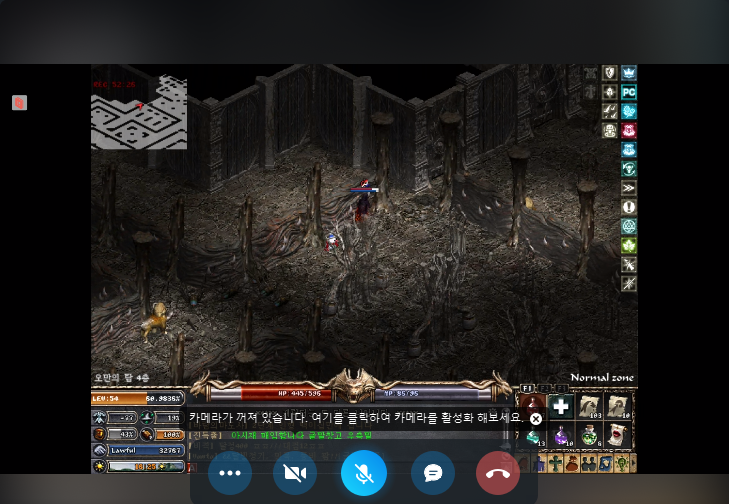
Telegram group video chat screen-sharing feature guide. Menu names may vary depending on your device and version.
There’s no need to judge the entire day’s work based on just one moment from a livestream. Review the messages, daily task progress logs, and evidence in the BuffUp contract chat together. Any changes to the amount, duration, or scope of work should also be reflected in the contract terms and records.
According to the user’s description, you can record using Lineage Classic’s built-in recording feature or OBS. This indicator does not mean that the Telegram Live itself is being recorded.
A group administrator must start Telegram video-chat recording separately. If recording is needed, agree in advance who will record it, how, and how it will be shared. Ordinarily, focus on receiving reports and reviewing the work in the contract room.
Watch the live screen in the group chat, and check work instructions, reports, and daily records in the BuffUp contract room.
When you receive a completion request, check the result first. Review the contract terms and report, then decide whether to approve. Work completion and actual settlement are separate steps.
Open a contract marked Completion Requested from Completion confirmation requests in MY or My Contracts. In the contract room, read the ‘A request to approve completion of all work has arrived’ notice and use Review the details to check the agreed work again.
Review the conversation, daily logs, and attached evidence to check the following four items. It’s best to ask any necessary questions and review the materials before approving completion.
Scope of workHas all the work specified in the contract been completed?Duration and hoursWere the agreed dates and working hours observed?Results · Supporting DocumentsHave you reviewed the report and required materials?Outstanding IssuesAre there any unfinished tasks or unresolved objections?Proceed to Approval of Completion under My Contracts. Review the contract, amount, and processing details on the final confirmation screen before deciding.
NEEDS REVIEWLeave a note in the contract chat specifying which task on which date is different, and request an explanation and supporting evidence. If it remains unresolved, check the on-screen dispute filing procedure.
This card is a diagram explaining the status and buttons observed on the app screen. It is not a screenshot of the actual app screen.
In the reviewed example of a completed contract room, the notices ‘Settlement approval pending’ and “The contract payment is held in escrow until disbursement is approved.” are shown. Check the contract’s settlement status again to confirm whether payment was actually made.
Review the completion request, then approve it or report an issue. Afterward, check the settlement status separately.
Remote PC rental is a separate service arranged with an external partner. It is distinct from a buffup helper contract payment or your in-app top-up balance. Connection uses Parsec; confirm the rental terms with the provider before paying.
Refund policy pending
The PC rental refund policy has not been finalized. Confirm the applicable refund terms in the consultation before payment.
Prices by rental duration are listed below.
Ask how to qualify for the buffup user discount and confirm the final price. Discounts for 7 or 15 days and other duration options have not been confirmed.
Contact the remote PC rental enquiry chat (@buffup_pc) with your preferred duration, game and connecting device. If you use buffup, ask how to apply the 30-day discount.
Example enquiry
“I would like to enquire about remote PC rental. My preferred duration is ○○ days, the game is ○○, and my connecting device is ○○. Please confirm PC specifications, available usage hours, final price, start date, outage handling and refund terms.”
Do not send passwords or verification codes in the enquiry chat.
A price list alone does not define PC specifications or available hours. Confirm the following before deciding the final product, duration and amount.
The provider's rented PC is the host supplying the screen; your device is the guest receiving it. This is the reverse of ordinary remote helper work where the customer's PC is the host.
You can also consult Parsec's official hosting and permissions guide. Exchange connection details only in the relevant user's conversation with the provider.
Confirm duration, price, specifications, available hours and outage terms, then check Parsec display and input operation.
Check partner terms on the approval screen and in the details for each contract.
After applying and completing an operator review, partners direct new users through their personal link. Applying alone does not result in approval or generate fees.
On the partner application screen, enter your display name, promotional channels, and promotion plan. After applying, check your review status and any instructions from the operator. Do not distribute a self-created link as an official partner link before approval is complete.
Once approved, find the link issued to you and the promotional page on the partner screen. Before sharing, check that the link opens the intended page and leads to the official sign-up process.
Page visits, Telegram clicks, sign-ups, member approval, eligible contracts, and completion/settlement are separate stages. A click or sign-up alone does not confirm a commission. Check the partner page in your own account and the details for each contract to verify the actual rate and attribution.
Buyer friend referrals and the partner program are separate schemes. Do not claim that both benefits apply to the same referral. If a cancellation, refund, or dispute occurs, the commission status for the contract may also change, so check the latest details.
Even if a commission is displayed, eligible for payment, payment processing, and payment completed are different statuses. Check the current instructions on the partner page for application eligibility, minimum amounts, and wallet address requirements. Trust a payment-completed status only after confirming the actual transaction details.
If the amount or status differs from what you expected, cross-check the attributed member, eligible contract, and cancellation/refund status, then contact official customer support.
No. Clicks and sign-ups are performance-tracking stages; commission confirmation depends on the eligible contract and settlement status.
First check your approval status and the personal link issued to you. Do not share an unofficial link as though it were an official link before approval.
Check the partner page in your own account and the details for each contract to see the currently applicable terms.
From preparation through settlement confirmation, this guide shows helpers how to create clear listings and record their work in the contract room.
Before you beginMY → Helper Profile: Save the games and tasks you can handle, your languages, local availability, and bio. List only work you can actually perform, and use your own materials when uploading videos or experience.
Buyers search for helpers by game and requirements, then compare profiles, products, prices, and ratings. Review the buyer-screen example below and consider which information to highlight first in your introduction.
In Manage Products, select Hourly or Per job under Pricing method. For hourly products, enter the local time zone, start/end times, base days, hourly rate, and options. For per-job products, enter the price for one job, estimated days, and work description; clearly state the included work and completion criteria. List stages or packages with different prices as separate products. Buyers choose the quantity, so also check the displayed minimum quantity and contract total.
Scope of work: Can you actually handle these games and tasks? Time and duration: Have you distinguished local time from the time shown to buyers? Amount and options: Have you checked the total, including the base price and options?
Before saving, check both the final amount shown to buyers and the estimated payout on your screen. Reopen edited listings to verify the saved values, and for contracts that have already been finalized, refer to the price and terms of that contract.
Read the game, work, pricing method, quantity or duration, dates, and final amount in the buyer’s offer. Check working hours for hourly products, or scope and completion criteria for per-job products. If you cannot do the work or the schedule does not suit you, request revised terms or decline the offer.
After acceptance, check the contract number and status, as well as the indicator showing the buyer’s deposit of the contract payment. Do not start work just because a proposal has arrived. Proceed only after confirming that the work-start stage and the agreed terms are displayed in the contract room.
If you are affiliated with an agency, agree in advance with your contact person on how you will report, too. Check your share and the agency fee based on the details shown for each contract.
In the contract room conversation and daily work progress log, record what you did that day and any required deliverables. If the schedule is slipping or work is blocked, specify which task on which date is affected.
Sample brief reportThe buyer may review a daily log or raise an objection. The app screen shows a 48-hour review and objection window for new records. Older records may follow the deadline shown when they were submitted, so check each record’s deadline.
Messages without a saved translation appear in their original language, so confirm the other party's reply about amounts, dates or account access in the contract room. Keep work reports there even when using a live session or recording.
Once the final task is complete, review the records and any unresolved questions, then Request full completion. Explain the final result to the buyer and wait for review.
If there is a disagreement, sort it out based on the contract scope, conversation, and records by date. If it is difficult to resolve, use the app's dispute process. During a dispute or cancellation, do not present any refund or settlement amount as confirmed.
Review daily records → Approve full completion → Confirm actual payment
Even if a contract is marked completed, that does not mean payment has been made immediately. On your screen, check Available for settlement → Request status → Payment statusin order. If you register a payment wallet, double-check its network and address.
If the amount differs from what you expected, compare the contract number, product and options, cancellation/refund/dispute status, and settlement details, then contact official customer support. Check separately the settlement share for assistants affiliated with an agency and the agency fee.
Can I start working as soon as I receive an offer?
Check the terms and accept the offer, then confirm that the contract deposit has been placed and the work status is active.
Will I be paid once the daily records are confirmed?
No. Confirmation of daily records, approval of overall completion, and actual payment are separate steps.
If I edit a product, will existing contracts change?
For contracts that have already been concluded, refer to the terms shown in the contract.
Agree on the terms before acceptance, keep records while the work is in progress, then check completion and actual payment status separately.
A good team takes responsibility from before the contract through to the end. This guide organizes assistant affiliations, manager permissions, contract room management, and settlement checks from the owner's perspective.
Guidance for after owner approval.Go to MY → Team & Manager Management → Agency Team Management to see the team name and helper invitation options. Tap Copy helper invitation link or Copy code only and send it to the helper.
The assistant can enter the code during sign-up, or register their affiliation in MY after signing up and being approved. An invitation alone does not complete KYC or administrator approval. Check on both sides that the same agency appears on the assistant’s screen and in the manager’s affiliation list.
If the code has expired, send a new invitation. If the assistant is already affiliated with another agency, first check for any ongoing contracts and whether the affiliation can be removed.
The head can nominate an existing approved member as a general manager candidate and assign managers under them. Approved buyers may also be candidates. However, A nomination and the nominee’s acceptance alone do not grant organizational or contract authority. Individual KYC, any required screening, and final approval are still necessary.
Manager review in the live service
Additional document submission and final manager approval are not yet available in the live service. Nomination, acceptance and personal KYC alone do not grant manager permissions. Contact official customer support about availability. Do not send IDs or sensitive documents in Telegram chats.
Check whether the games, tasks, hours, and prices listed in the assistant’s profile and product match what is actually offered. When a proposal arrives, confirm the scope of work, duration, local and Korean time, base price, add-on options, and final amount together.
Scope of work · Hours and duration · Final amount · Contact person and allocationFor contracts with an agency, confirm the assistant’s share, the agency fee, and the contact person’s allocation before signing. Under the currently documented policy, the agency’s total commission is capped at 20% of the contract amount, and the lead and manager shares are divided within that cap. Do not state that changes to the percentages after signing apply retroactively to existing contracts.
After confirming that the contract is funded and work has started, ask the helper to record each day’s work in a daily log in the contract room. Approved team members can review buyer requests, helper reports, and disputes there.
Check saved translations alongside the original. If no translation is available, read the original. Confirm important details such as amounts, dates and account access with the other party in the contract room. Keep key work records there even if you use live calls or recordings.
This service model for agency-affiliated contracts is that the agency guarantees the work and handles liability and compensation procedures in the event of an accident. If you become aware of a problem, review the contract terms, compensation criteria, daily records for the relevant date, conversations, and supporting evidence.
Verify the facts using the contract recordsDo not promise an amount that is not provided for in the contract, such as unconditional full compensation, in advance. Actual compensation or refunds are determined by the contract terms and the dispute ruling. Do not describe amounts still under investigation as finalized settlements.
Keep both the buyer and the helper updated on the case in the same contract chat, and use the app’s official dispute process if the issue is difficult to resolve. Do not request or share identity documents, passwords, OTPs, or wallet private keys in group chats.
Work completed, eligible for settlement, payment processing, and payment completed are different statuses. For each contract number, check the helper’s share, agency fee, staff allocation, holds, refunds, and payment status. Do not combine the helper’s settlement amount with agency income.
If the amounts differ, compare the rates and options agreed to at the time of the contract, and check for partial refunds or disputes. Even if an amount eligible for settlement is displayed, do not say that the transfer to the actual wallet has been completed.
Check the assistant’s registration, KYC, and operator approval, as well as whether their agency affiliation is displayed.
Can a buyer also become a general manager?Approved buyers may also be candidates. Team permissions are not enabled until they accept the nomination and complete a separate review and final approval.
Can an agency view all helper contracts?The approved agency owner and active managers can view every contract room belonging to their team, but not contracts of other agencies. Handle your own helper work in the personal helper screen.
If a contract is complete, has the agency fee also been paid?No. Contract completion and settlement and actual payment are separate stages.
Set up the conditions that allow assistants to work correctly, and use records in the contract chatroom to track progress and resolve issues.
If a problem arises with your contract, follow these steps. This guide covers everything from submitting a cancellation request and documenting the contract room to filing a dispute and checking refund and settlement results.
Don’t estimate the refund amount first.Open the relevant contract under My Contracts and check the contract number, helper, scope of work, amount, and current status. Select the situation that applies below.
Proposal pending · Before work startsCheck whether the proposal was accepted and the deposit was placed, then review the cancellation process shown on the screen. The contract room being open does not mean work has started.In progressRecord in the contract room which task on which date differs. If any work has been completed, the refund and settlement terms may differ.Completion requested · CompletedCheck the full results and any unresolved disputes. Do not click the completion approval button until they are resolved.If you want to cancel before work starts, check the available cancellation options in the contract details and the instructions for entering a reason. The actual refund timing and method have not been confirmed. If there is no button or the status is unclear, note the contract number and contact official customer support.
A brief message like “The work is wrong” is not enough to investigate. Compare what was promised in the contract with what actually happened, and write down the following four things.
If the daily log has a review or objection procedure, check the deadline shown for that record. The app screen shows a 48-hour review and objection period for new records. Existing records may be subject to the deadline in effect when they were submitted. Daily record confirmation is different from approval of the entire task or actual payment.
The contract room reviewed includes “Having a problem? File a dispute” guidance. Open the process for that contract, submit the reason, relevant dates, requested resolution, and supporting evidence, then check the submission status. If there is no button, provide customer support with the contract number and current status.
If this is a contract with a helper affiliated with an agency, the affiliated team also participates in the responsibility and compensation process. The specific scope of compensation is determined by the contract terms and the decision, so do not promise a full refund or completed compensation before the outcome is determined.
Submit necessary materials only through the contract room and official customer support. Do not post phone numbers, wallet addresses, or ID documents in public groups, and do not provide passwords, OTPs, or wallet private keys as evidence.
Check who made the request, when, and why, and whether the contract status changed. Once a result is available, compare the refund amount, the helper’s share, the agency fee, and any amount withheld with the original contract amount. If some of the work is recognized or a partial refund is issued, the amounts may differ.
If you can’t understand the calculation or the totals don’t match, send the contract number and displayed amounts to official customer support and ask for an explanation. Refund approval and posting to the balance, and settlement eligibility and actual payment completion, are separate steps. Finally, check your balance, transaction history, or payment status.
No. If the issue remains unresolved, use the contract dispute filing or customer support process, and check the filing status.
If I cancel before work starts, when and where will I get a refund?The provided materials aren't enough to determine the refund route or timing. Check the contract's processing outcome, balance, and transaction history.
If I dispute a day's work record, will the entire contract be canceled?Disputing a daily record and canceling or disputing the entire contract are separate steps. Check the contract status.
I received a request to mark the work as complete, but there are still issues.Before approving full completion, document the issue and supporting materials in the contract chat. If it remains unresolved, use the dispute process.
Clearly state your reason, submit it through the official process, and confirm that the refund or settlement amount is actually reflected.
Check the original announcement for important news, and check your contract’s details screen for changes to your contract. For personal issues, contact Customer Support with specific details.
When there is something to check, such as a contract offer, message, daily work log, or completion request, you may receive a notification in the app’s inbox or a Telegram message from the official bot. Check the contract number and other party shown in the notification, then verify the actual status and next steps under My Contracts.
Even if a notification is missing or delayed, don’t assume the contract status is unchanged. Open My Contracts and the contract chat directly to check for new messages and daily work logs. If a notification takes you to the wrong screen, note the time it occurred and the contract number, then contact Customer Support.
We are still verifying with real accounts whether app and Telegram notifications for every event will always arrive.
Check the app’s announcements for maintenance, feature or policy changes, and security notices. Read the posting date, effective date, who is affected, and what users need to do, along with the title.
Check the original announcement and latest publication date in the app. Publication on the official channel @buffupch must be checked separately; not every announcement is delivered automatically or immediately. Do not transfer money to a personal account or wallet without checking the official instructions.
For issues related to your account, such as registration or login, deposit processing, contract status, cancellations or disputes, and settlements, check the inquiry and reporting procedures in the app’s customer support section. Preparing the information below can make it easier to explain the issue.
Example inquiry:
Around 3:00 p.m. on October 20, I checked the daily log for my contract [contract number]. Even after reopening it, the status appears as [current display]. Please confirm whether it was processed correctly and what steps I should take next.
Also keep details of the contract work and the reason for any dispute in the relevant contract chat. Do not post contract numbers, IDs, contact details, or proof of transfer in public groups. Do not send your password, verification code, or wallet private key, even to customer support. After receiving a response, verify the actual status of the contract, balance, and settlement.
Distinguish whether your inquiry concerns a Buffup contract or an individual transaction or rental with a partner company.
Review the terms for sales, rentals, and refunds provided by the partner provider before making a decision.
No. Open your contract and contract chat directly to check its status and confirmation deadline.
Check the original announcement and latest publication date in the app. Publication on the official channel @buffupch must be checked separately; not every announcement is delivered automatically or immediately. Do not transfer money to a personal account or wallet without checking the official instructions.
Keep the details and materials of your personal contract in the contract chat and with official customer support.
Please check individual transaction and rental terms first in the relevant agency’s chat room. You can also report app banner or connection errors to Buffup Customer Support.
Friend code: an approved buyer who refers a new buyer and the new buyer each receive 10 USDT.
Marketing partner code: only the new buyer receives 10 USDT. The partner receives no 10 USDT referral bonus and keeps their existing contract commission.
For either code, the approved new buyer's first normal contract of at least 100 USDT must be completed and settled. A friend referrer must also be an approved buyer. Only one code applies at sign-up. Cancelled, refunded, disputed, or duplicate-account cases do not qualify or require review.
The bonus appears in the in-app balance and transaction history, but currently cannot fund a contract or be withdrawn. Earlier sign-ups and contracts are not retroactively credited.